Getting started · Step 4
Connect your calendar & tools
Link the calendar you already run your week from, so your receptionist offers real openings and books jobs straight in. No API keys, nothing to copy.
≈ 2 minutes · every plan (1 calendar connection) · multiple calendars on Pro and up
Open Settings → Integrations. Every provider connects the same way — sign in to your account, tap Allow, done.
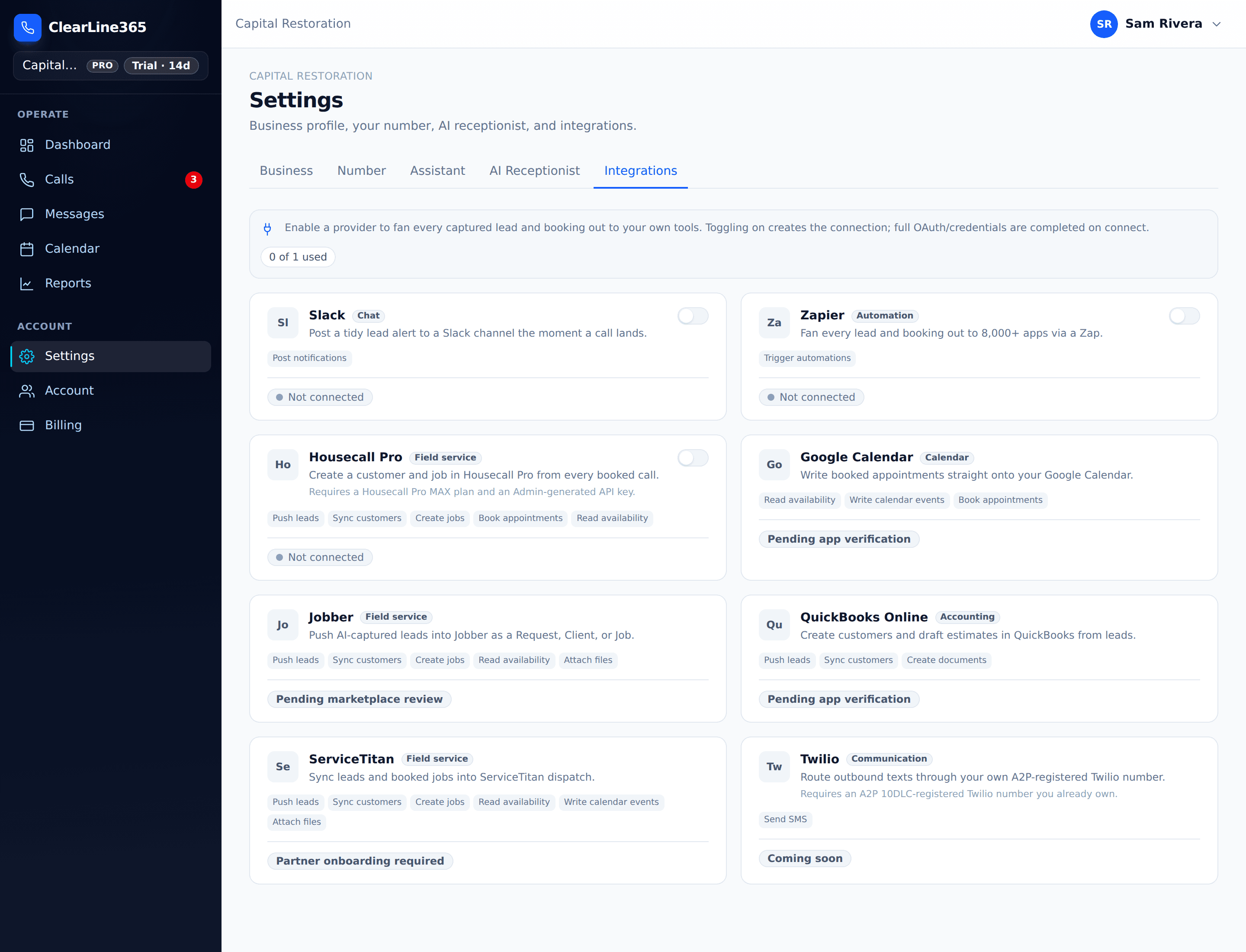
Pick a provider and click Connect
Find the calendar you use — Google Calendar, Apple Calendar, or Microsoft 365 / Outlook — and click Connect on its card.
Sign in and tap Allow
You'll be sent to that provider's own sign-in. Log in to your account and approve access. ClearLine never sees your password — the connection uses secure OAuth (Apple Calendar instead asks for an app-specific password, and its card walks you through creating one), so:
- No API keys to generate
- Nothing to copy or paste
- You can revoke access from the provider anytime
Confirm what it can do
Back on the card you'll see the capabilities it unlocks — like sync booked appointments to your calendar, and book appointments. Now your receptionist offers callers real open slots and drops booked jobs straight onto your calendar.